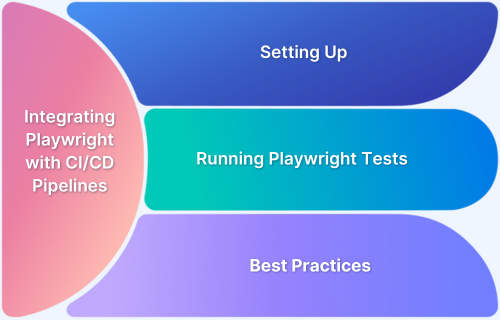
Have you ever pushed code that passed your local tests, only to find it fails in production? As a developer, I’ve experienced the frustration of last-minute bug fixes that could’ve been caught earlier. That’s why I started integrating Playwright with CI/CD pipelines – it’s a game-changer.
Automating Playwright tests throughout the development lifecycle ensures bugs are detected as early as possible, reducing the risk of production issues.
In fact, organizations that adopted CI/CD practices reported about 25% faster lead time for changes and 50% fewer failures.
Overview
Integrating Playwright with CI/CD pipelines automates the testing process, ensuring that issues are caught early and your code is always production-ready. This leads to faster releases, better code quality, and improved developer productivity.
Key Benefits of Integrating Playwright with CI/CD:
- Faster Feedback: Run tests automatically on every commit, pull request, or deployment for immediate results.
- Improved Code Quality: Catch bugs earlier in the development cycle, reducing production issues.
- Cross-Browser Testing: Ensure your application works across multiple browsers and devices seamlessly.
- Streamlined Development: Eliminate manual testing and reduce the chances of human error.
- Faster Releases: Teams report up to 25% faster lead times with CI/CD and automated testing.
This article explores how integrating Playwright with CI/CD pipelines enhances testing efficiency, improves code quality, and accelerates development cycles.
What is Playwright?
Playwright is a powerful, open-source automation framework for testing modern web applications. Developed by Microsoft, it provides a unified API for automating browsers, including Chromium, Firefox, and WebKit, across multiple platforms such as Windows, macOS, and Linux.
Key Features of Playwright:
- Cross-Browser Testing: Playwright supports automating tests across all major browsers (Chromium, Firefox, WebKit), ensuring consistent user experiences across different platforms.
- Headless Testing: Playwright runs tests in headless mode by default, meaning it can execute tests without a graphical user interface, which is ideal for CI/CD pipelines.
- Automated Interaction with Web Elements: You can automate interactions like clicking buttons, filling out forms, navigating between pages, and more.
- Parallel Test Execution: Playwright allows tests to run in parallel across multiple browsers and environments, speeding up test execution times.
- Mobile Device Emulation: It also includes features for emulating mobile devices, including touch events, enabling testing for responsive design and mobile web functionality.
- Advanced Features: Playwright supports capturing screenshots, videos, and detailed logs of test executions, making it easier to debug and monitor your tests.
Understanding CI/CD Pipelines
Continuous Integration (CI) and Continuous Delivery (CD) are modern software development practices that aim to improve code quality, speed up delivery, and reduce manual intervention. Together, they form the backbone of modern DevOps workflows, ensuring that code changes are automatically built, tested, and deployed in a streamlined, consistent process.
Why Integrate Playwright with CI/CD Pipelines?
Integrating Playwright with CI/CD pipelines automates browser testing, providing faster, more reliable feedback and ensuring consistent code quality across environments. Here’s why it’s essential:
- Faster Feedback and Releases: Playwright tests run automatically on each code change, providing quick feedback and enabling faster release cycles.
- Consistency Across Environments: Tests run in a consistent, repeatable environment, eliminating the “works on my machine” problem and ensuring reliable results.
- Continuous Testing: Automated, continuous testing throughout the development cycle ensures bugs are caught early, maintaining high code quality.
- Cross-Browser Testing: Easily test your application on Chromium, Firefox, and WebKit to ensure cross-browser compatibility with every change.
- Scalability and Parallelization: Playwright supports running tests in parallel across multiple environments, reducing test execution time and speeding up feedback.
- Improved Collaboration: Automated tests improve team collaboration, providing faster feedback and reducing the chance of bugs reaching production.
For even broader testing coverage, integrating BrowserStack Automate with Playwright in your CI/CD pipeline allows you to run tests on real devices and browsers, ensuring a more comprehensive and accurate testing process without the need for managing your own test infrastructure.
Setting Up Playwright for CI/CD
Setting up Playwright for CI/CD ensures automated, consistent testing in your pipeline. Here’s how to get started:
1. Install Playwright and Dependencies
Install Playwright and its required browsers:
npm install playwright

npx playwright install
2. Create Playwright Configuration File
Create a basic configuration (playwright.config.ts):
import { defineConfig } from ‘@playwright/test’;
export default defineConfig({

use: {

headless: true,

screenshot: ‘only-on-failure’,

video: ‘retain-on-failure’,

},

});
3. Set Up CI/CD Workflow
For GitHub Actions, add a workflow file (.github/workflows/playwright.yml):
name: Playwright Testson:
push:
branches: [main]jobs:
test:
runs-on: ubuntu-latest
steps:
– name: Checkout code
uses: actions/checkout@v4
– name: Set up Node.js
uses: actions/setup-node@v4
– name: Install dependencies
run: npm ci
– name: Install Playwright browsers
run: npx playwright install
– name: Run Playwright tests
run: npx playwright test
4. Use Headless Testing
Ensure tests run in headless mode for CI environments by setting this in the config:
use: {

headless: true,

}
5. Handle Artifacts for Debugging
Upload screenshots and logs in case of failures:
– name: Upload Playwright artifacts

if: failure()

uses: actions/upload-artifact@v2

with:

name: playwright-artifacts

path: ./playwright-report
This setup will automate Playwright testing in your CI/CD pipeline, ensuring fast feedback and consistent results across environments.
Read More: How to Setup an Effective CI/CD Pipeline
Configuring Playwright in Popular CI/CD Tools
Integrating Playwright with CI/CD tools like GitHub Actions, Jenkins, and GitLab CI automates your testing workflow, ensuring that your tests run consistently and efficiently.
Below are configurations for setting up Playwright in each of these popular tools.
1. GitHub Actions
To configure Playwright in GitHub Actions, create a workflow YAML file in .github/workflows/playwright.yml. This configuration automatically installs dependencies, sets up Playwright browsers, and runs tests on each push.
name: Playwright Testson:
push:
branches: [main]
pull_request:
branches: [main]jobs:
test:
runs-on: ubuntu-lateststeps:
– name: Checkout code
uses: actions/checkout@v4– name: Set up Node.js
uses: actions/setup-node@v4
with:
node-version: ’16’– name: Install dependencies
run: npm ci– name: Install Playwright browsers
run: npx playwright install– name: Run Playwright tests
run: npx playwright test
2. Jenkins
In Jenkins, create a Jenkinsfile to define your pipeline. This setup ensures Playwright is installed, and tests are executed in a clean, isolated environment.
pipeline {

agent any

stages {

stage(‘Install Dependencies’) {

steps {

script {

sh ‘npm install’

sh ‘npx playwright install’

}

}

}

stage(‘Run Tests’) {

steps {

script {

sh ‘npx playwright test’

}

}

}

}

}
3. GitLab CI
For GitLab CI, you can configure Playwright using a .gitlab-ci.yml file. Use a Docker image that has Playwright installed or install Playwright during the CI job execution.
stages:
– testtest:
image: mcr.microsoft.com/playwright:v1.16.0-focal
script:
– npm install
– npx playwright install
– npx playwright test
These configurations for GitHub Actions, Jenkins, and GitLab CI provide a streamlined process for integrating Playwright into your CI/CD pipelines, ensuring automated cross-browser testing with minimal setup.
Read More: Playwright Test Report: Comprehensive Guide
Running Playwright Tests Across Multiple Environments
Running Playwright tests across multiple browsers, operating systems, and devices ensures your application is fully tested in real-world conditions. Here’s how to do it efficiently:
1. Matrix Builds for Parallel Testing
In CI tools like GitHub Actions, you can run tests in parallel across different browsers and OS environments. Example for GitHub Actions:
strategy:

matrix:

browser: [chromium, firefox, webkit]

os: [ubuntu-latest, macos-latest]
This setup runs Playwright tests in parallel across different combinations, speeding up execution and increasing test coverage.
2. Configuring Projects for Multiple Environments
Playwright’s configuration file allows you to define projects for different browsers or devices:
projects: [

{ name: ‘chromium’, use: { browserName: ‘chromium’ }},

{ name: ‘firefox’, use: { browserName: ‘firefox’ }},

{ name: ‘webkit’, use: { browserName: ‘webkit’ }},

{ name: ‘mobile’, use: { …devices[‘iPhone 12’], browserName: ‘webkit’ }},

]
This ensures Playwright runs tests on specific browsers and devices, including mobile emulation.
3. Cross-OS Testing in CI
In GitLab CI or Jenkins, you can define multiple OS environments in parallel to ensure consistency across platforms:
image: mcr.microsoft.com/playwright:v1.16.0-focal

script:

– npx playwright test –project=chromium

– npx playwright test –project=firefox

– npx playwright test –project=webkit
This setup runs Playwright tests across different OS environments.
By using matrix builds and defining multiple projects in Playwright, you can efficiently run tests across browsers, OSs, and devices, ensuring comprehensive test coverage in your CI/CD pipeline.
Integrating Playwright with Docker for CI/CD
Integrating Playwright with Docker ensures a consistent, isolated testing environment, making your CI/CD pipeline more reliable and reproducible.
1. Dockerfile for Playwright
Create a Dockerfile to install Playwright and necessary dependencies:
FROM node:16# Install dependencies
RUN apt-get update && apt-get install -y
wget libx11-xcb1 libgbm-dev libnss3 libatk-bridge2.0-0
libatk1.0-0 libxss1 xdg-utils libnspr4 libpango1.0-0 &&
rm -rf /var/lib/apt/lists/*# Install Playwright
RUN npm install playwright# Set up working directory
WORKDIR /app# Copy project files and install dependencies
COPY . .
RUN npm install# Run Playwright tests
CMD [“npx”, “playwright”, “test”]
2. Configure Docker in CI/CD Pipeline
For GitHub Actions, use the following configuration to build and run the Playwright Docker container:
name: Playwright Tests with Dockeron:
push:
branches: [main]jobs:
test:
runs-on: ubuntu-latest
steps:
– name: Checkout code
uses: actions/checkout@v4– name: Build Docker image
run: docker build -t playwright-test .– name: Run Playwright tests in Docker
run: docker run –rm playwright-test
This setup ensures that Playwright runs inside a Docker container, providing a consistent, isolated environment for CI/CD pipelines.
Enhance Playwright CI/CD Pipelines with BrowserStack Automate
While integrating Playwright into your CI/CD pipeline provides powerful automated browser testing, adding BrowserStack Automate significantly enhances your testing coverage and accuracy.
BrowserStack allows you to run Playwright tests on real devices and browsers, making your tests more reflective of actual user experiences and ensuring comprehensive cross-browser testing.
Key benefits include:
- Real-Device Testing: Unlike virtual machines or emulators, BrowserStack Automate runs tests on real devices, ensuring the most accurate results for mobile and desktop web applications.
- Expanded Browser Coverage: BrowserStack provides access to a wide range of browsers (including versions of Chrome, Safari, Firefox, Edge) and operating systems, enabling you to test on a broader spectrum of environments than Playwright alone.
- Cross-Platform Consistency: By testing on real devices, BrowserStack ensures your web application’s functionality across both desktop and mobile platforms, ensuring consistent behavior across all devices and screen sizes.
- Parallel Testing on Multiple Environments: You can run tests in parallel across multiple browsers, OS combinations, and devices, reducing overall test execution time while improving test coverage.
- Seamless Integration with CI/CD: BrowserStack integrates easily with your existing CI/CD pipeline, working smoothly with GitHub Actions, Jenkins, and other CI tools. Playwright tests can be executed on BrowserStack’s infrastructure without needing to set up or manage your own test infrastructure.
Best Practices for Playwright in CI/CD Pipelines
To ensure efficient and reliable Playwright tests in your CI/CD pipeline, follow these best practices:
- Use Headless Mode: Always run Playwright tests in headless mode to improve test speed and resource efficiency in CI environments.
- Run Tests in Parallel: Leverage matrix builds to run tests across multiple browsers and OS environments simultaneously, speeding up execution time and increasing coverage.
- Capture Test Artifacts: Ensure that Playwright captures screenshots, videos, and traces for failed tests, which can be invaluable for debugging in CI.
- Isolate Tests: Make sure tests are independent and isolated to avoid issues where one test failure impacts others, enhancing reliability.
- Use Caching: Cache Node.js dependencies and Playwright browsers to reduce redundant installations and speed up CI build times.
- Keep the Test Environment Clean: Ensure tests run in a fresh, isolated environment by using Docker or ephemeral CI runners to avoid interference from previous runs.
- Monitor and Report Test Results: Integrate test reporting tools like Playwright’s built-in reporters or Allure to generate test reports, and monitor the status to catch issues early.
Read More: Web Scraping with Playwright
Conclusion
Integrating Playwright with CI/CD pipelines is a powerful way to automate browser testing, ensuring faster feedback, consistent quality, and reliable releases. By following best practices like running tests in headless mode, using parallelization, and capturing test artifacts, teams can enhance test efficiency and reduce debugging time.
Additionally, leveraging tools like BrowserStack Automate can further improve coverage and accuracy by running Playwright tests on real devices and browsers. With the right setup, Playwright in CI/CD pipelines streamlines the development process, improves collaboration, and ensures high-quality software delivery at speed.
Useful Resources for Playwright
- Playwright Automation Framework
- Playwright Java Tutorial
- Playwright Python tutorial
- Playwright Debugging
- End to End Testing using Playwright
- Visual Regression Testing Using Playwright
- Mastering End-to-End Testing with Playwright and Docker
- Page Object Model in Playwright
- Scroll to Element in Playwright
- Understanding Playwright Assertions
- Cross Browser Testing using Playwright
- Playwright Selectors
- Playwright and Cucumber Automation
Tool Comparisons:
 Featured Article